SpeakLane vs Apple Dictation: when local Whisper makes sense
A practical comparison for Mac users deciding when built-in dictation is enough and when a dedicated local workflow is worth it.
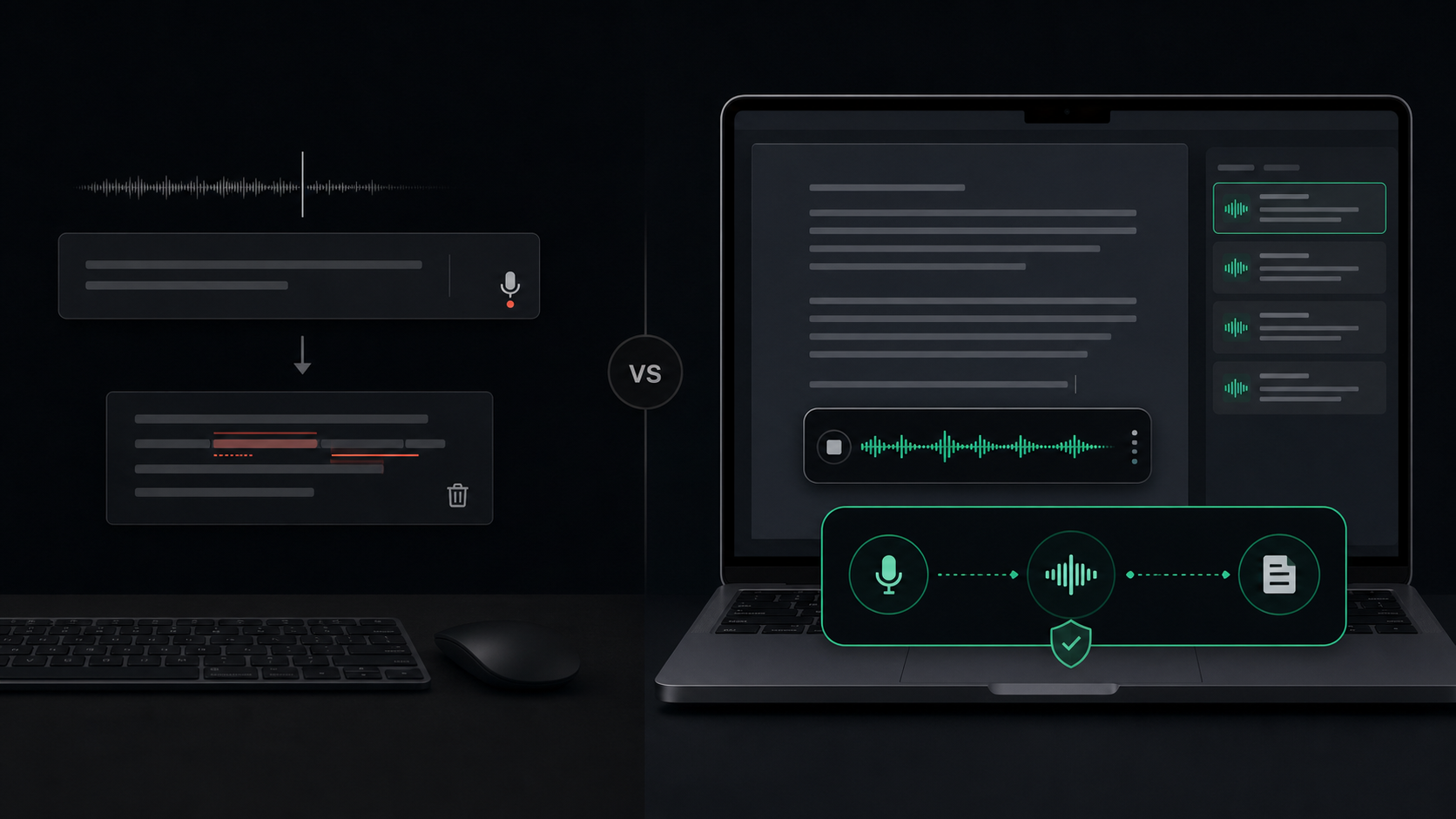
Apple Dictation is the right first stop for a lot of Mac users.
It is already on the machine. It works anywhere you can type. You can turn it on, speak a sentence, and get text without buying another utility or learning a new workflow.
That is exactly why the comparison is useful. If built-in dictation handles your job well, you may not need anything else. But if you are dictating private notes, longer drafts, file transcripts, client context, or AI prompts all day, the limits tend to show up in the same places: control, recovery, cleanup, model choice, and privacy clarity.
Here is the practical version of the decision.
Start with what Apple Dictation is good at
Apple Dictation is best when the task is small and ordinary.
Use it when you want to enter a short message, fill a text field, or speak a sentence into the app that is already open. There is no separate purchase, no account, and no extra setup beyond turning Dictation on in Keyboard settings.
That makes it a sensible default for:
- Quick replies.
- Search fields.
- Short notes.
- One-off text entry.
- Occasional voice input when typing is inconvenient.
Apple's own Mac help page describes Dictation as a way to "speak to enter text anywhere you can type it," and points users to Keyboard settings to see whether general text Dictation is processed on-device or requires an internet connection. That matters because the privacy behavior can depend on the device, language, region, and current settings.
In other words: Apple Dictation is convenient, especially for light use. The question is whether convenience is the only thing you need.
Look for the point where dictation becomes a workflow
Dedicated dictation tools start to make sense when voice is no longer occasional input.
That usually happens when you are using voice for work that has consequences:
- Drafting client replies or internal notes.
- Talking through a messy product decision.
- Dictating longer AI prompts with context and constraints.
- Turning voice memos or meeting clips into transcripts.
- Capturing thoughts while switching between Mail, Notes, Slack, Cursor, Notion, and documents.
At that point, the transcript is not just text entry. It is part of a capture workflow.
You need to know where the recording went. You need a way to recover the transcript if insertion fails. You may want the fastest model for a quick note and a stronger model for a noisy file. You may want filler words cleaned up before the text lands in your editor. You may want the original audio and transcript saved locally so you can review them later.
That is the gap SpeakLane is built for. It is not trying to replace every Apple input feature. It gives Mac users a more explicit local dictation workflow: hotkey capture, local Whisper transcription, model choice, cleanup settings, file transcription, and local history.
Compare the privacy boundary, not the slogan
Privacy comparisons get sloppy when they turn into slogans.
The better question is: what systems touch the raw audio before you decide what to do with the text?
As of May 5, 2026, Apple's Mac Dictation help page says Keyboard settings can show whether general text Dictation audio and transcripts are processed on your device and not sent to Siri servers. Apple's Siri, Dictation & Privacy page explains that when Dictation is not processed on-device, dictated content is sent to Apple servers for processing, with storage behavior depending on settings such as Improve Siri and Dictation.
That does not make Apple Dictation bad. It means the privacy answer is conditional, and users who care should check the actual setting on their Mac.
SpeakLane's privacy boundary is simpler for its core workflow: transcription runs locally on your Mac, and the app does not host your recordings or transcripts on SpeakLane servers. You still need judgment after the text exists. If you paste the transcript into a web app, send it in an email, or share it with an AI tool, that next app has its own privacy boundary. Local transcription reduces one handoff; it does not make every later destination private.
For client notes, private drafts, internal planning, and rough AI prompts, that distinction is often enough to matter.
Compare control over the transcript
Built-in dictation is designed to be lightweight. That is the appeal.
But lightweight tools often give you fewer knobs when the result is rough.
With a dedicated local workflow, you can make more deliberate choices:
- Use a faster model when the text is just a rough capture.
- Use a stronger model when names, numbers, quotes, or technical terms matter.
- Enable cleanup when filler words make drafts harder to read.
- Auto-insert into the focused app when the cursor is in the right place.
- Auto-copy when you prefer to review before pasting.
- Save transcripts and recordings in local history so a failed paste is not the end of the session.
Those details sound small until you dictate often. A fast tool that loses one important note becomes hard to trust. A tool that saves the transcript locally gives you room to recover, edit, and move the text where it belongs.
If you mostly dictate one sentence at a time, you may not care. If you use voice for drafts and decisions, control becomes part of the value.
Compare live dictation with file transcription
Apple Dictation is mainly for speaking text into a place where you can type.
A lot of real voice work does not start that way. It starts as an existing file:
- A Voice Memos recording.
- A podcast clip.
- A customer interview.
- A meeting recording.
- A screen recording with spoken notes.
- A short video you want to quote or search.
For that job, you need file import, a model setting that matches the recording, and somewhere the finished transcript can land.
SpeakLane can import common audio and video formats from the menu bar with Transcribe File, then save the result in your local history. The same practical rules still apply: clean source audio helps, longer or noisier recordings may need a stronger model, and important transcripts deserve review before you quote or share them.
This is one of the cleanest decision points. If you only need live text entry, Apple Dictation may cover the job. If you also need local file transcription, use a tool built for that workflow.
Choose Apple Dictation when the job is small
Apple Dictation is the better choice when:
- You only dictate occasionally.
- You want the lowest-friction built-in option.
- You are entering short text and can fix mistakes immediately.
- You do not need file transcription.
- You do not need local transcript history.
- You are comfortable with the privacy behavior shown in your Mac's Keyboard settings.
There is no reason to overcomplicate that use case. Built-in tools are valuable precisely because they are already there.
Choose SpeakLane when voice becomes part of daily work
SpeakLane makes more sense when:
- You want local Whisper transcription as the normal path.
- You dictate private drafts, client-sensitive notes, or rough internal context.
- You want a push-to-talk global hotkey that fits into every app.
- You want model choice for speed vs accuracy.
- You want cleanup and output behavior you can tune in Settings.
- You want local history as a safety net.
- You need to transcribe existing audio or video files.
- You would rather pay once than add another voice subscription.
The point is not that every Mac user needs a dedicated dictation app. Most do not.
The point is that a small built-in feature and a deliberate local workflow solve different jobs. Apple Dictation is convenient text entry. SpeakLane is for people who want private, recoverable, Mac-native voice-to-text they can use repeatedly without handing raw audio to another service by default.
Start with the job. If it is a short sentence, use the built-in tool. If it is a workflow you rely on, give yourself the controls and recovery layer that make dictation easier to trust.