How to dictate better project updates on Mac
A practical workflow for turning rough spoken context into clear project updates, work logs, and status notes without over-sharing the messy draft.
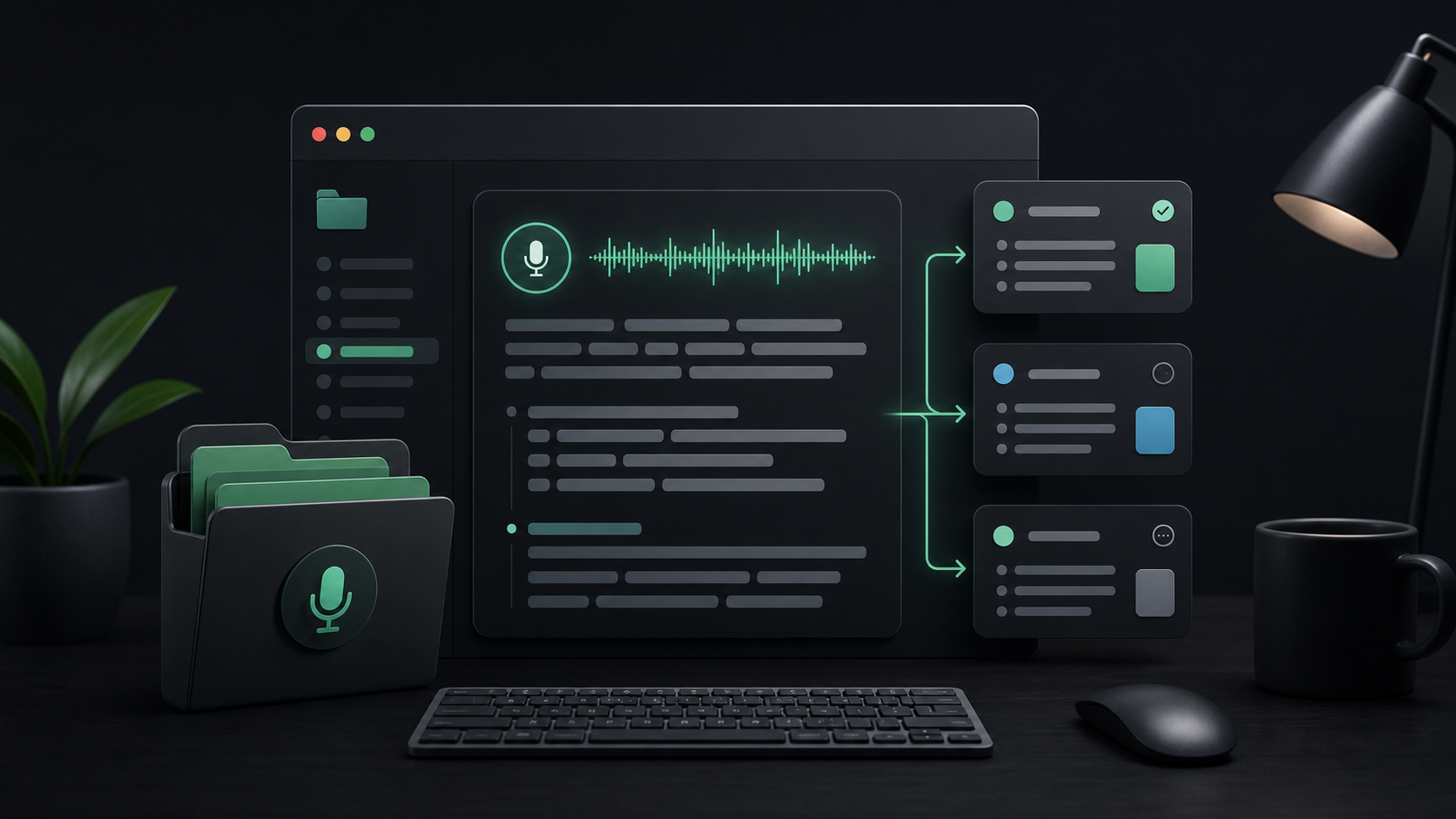
Project updates are hard because the useful context usually arrives before the clean sentence does.
You know what changed. You know what is blocked. You know why the decision was made. But when it is time to write the update, the first version either becomes too thin or too long: a two-line status note that hides the real issue, or a stream of context that makes everyone else do the editing.
Voice can help with that middle step. It lets you say the whole thought while it is still fresh, then turn the transcript into a useful update after the shape is visible.
The key is not to dictate straight into the final channel and press send. The better workflow is capture first, then edit for the person who needs the update.
Start with the job of the update
Before you speak, decide what the update needs to do.
A project update is not a diary entry. It is a small handoff. The reader should be able to understand what changed, what matters now, and whether they need to act.
Most updates fit one of these jobs:
- A status note: what moved since the last check-in.
- A blocker note: what is stuck and what decision or help is needed.
- A handoff note: what someone else needs to know before taking over.
- A work log: what you did, why, and where the next useful detail lives.
- A decision note: what was chosen, what alternatives were considered, and what happens next.
If you know the job before you start dictating, the transcript is easier to clean. You are not trying to capture everything. You are trying to capture the raw material for one useful note.
Dictate the messy version somewhere private
The first spoken version should be allowed to be rough.
That is where voice is useful. You can say, "The migration is mostly done, but the import job is still slow because the retry path is doing too much work, and I think we should split the backfill before we turn this on for everyone." That sentence may not be ready for Slack, Linear, Notion, or an email thread, but it contains the actual update.
Use a scratch space first when the update includes uncertainty, client context, internal reasoning, names, pricing, or anything you would not want to paste unedited into a shared channel.
With SpeakLane, a push-to-talk hotkey makes this practical. Click into a local note, hold the shortcut, speak one chunk, release, then review the transcript before moving it anywhere else. If you prefer to control where text lands, use auto-copy instead of auto-insert in Settings.
The point is simple: the raw transcript is working material. Treat it that way.
Use a repeatable update shape
Dictation works better when you give yourself a structure to speak into.
You do not need a strict template for every note, but a loose shape keeps the transcript from turning into a monologue. Try one of these patterns.
For a normal status update:
- What changed.
- What is next.
- What needs attention.
For a blocker:
- What is blocked.
- Why it is blocked.
- What decision, input, or access is needed.
For a handoff:
- Where the work currently stands.
- What has already been tried.
- What the next person should do first.
- Where the source material lives.
For a decision note:
- What was decided.
- Why that option won.
- What tradeoff remains.
- What changes now.
Speak each section as a separate chunk. Short recordings are easier to review, and the final text usually needs less surgery.
Edit for signal, not polish
The best project updates are not literary. They are clear.
After dictating, read the transcript once and cut anything that does not help the reader answer one of these questions:
- What changed?
- Why does it matter?
- Is anything blocked?
- Who needs to do something?
- Where can I inspect the details?
This is where a spoken draft becomes useful. Voice gives you the reasoning. Editing removes the private scaffolding around it.
For example, a raw transcript might say:
I think the checkout bug is probably not in the payment callback because the callback is firing, but the order record is not always ready by the time the success page asks for it, so I am going to look at the write path again unless someone has a better theory.
The update could become:
Checkout investigation: the payment callback is firing, but the success page sometimes asks for the order before the order record is ready. Next step is checking the write path and timing around order creation.
The edited version keeps the substance. It removes the uncertainty that was useful while thinking but not useful for the reader.
Keep details close to the work
A project update should point to the source of truth instead of trying to become the source of truth.
If the useful detail belongs in a ticket, put it in the ticket. If the decision belongs in a planning doc, put it there. If the transcript only helped you figure out the wording, do not paste the whole thing into the team channel.
Use the update to connect people to the right place:
- "Details are in the ticket."
- "The decision note is in the planning doc."
- "The transcript needs one quote checked before sharing."
- "The follow-up task is linked from the work log."
This matters for privacy as much as organization. A dictated work log can include more context than the final project record needs. Keeping the raw capture local gives you time to decide what belongs in shared tools.
In SpeakLane, local history can act as a safety net while you work. It is useful when you need to recover a draft or listen back to a recording, but it should not become the permanent home for project records. Move the cleaned note into the system where the project actually lives.
Check names, numbers, and commitments
Project updates often contain small details that create work if they are wrong.
Before sharing, check:
- Names, handles, and team names.
- Ticket numbers, branch names, customer names, and project names.
- Dates, deadlines, budgets, quantities, and version numbers.
- Words like "done", "approved", "blocked", "ready", and "deployed".
- Any sentence that sounds like a promise.
Dictation can capture the thought quickly, but the final update still needs judgment. If a detail changes someone else's plan, verify it before you send it.
For technical or name-heavy updates, try a more accurate local model in Settings > Models. A faster model may be fine for a quick personal work log. A stronger model is worth the wait when the update includes product names, acronyms, client names, or exact quotes from a call.
A simple voice-to-update routine
Use this routine for the next project note:
- Decide the job of the update: status, blocker, handoff, work log, or decision.
- Open a private scratch note or the final destination if the content is low-risk.
- Dictate one chunk at a time.
- Cut the transcript down to what changed, why it matters, and what happens next.
- Verify names, numbers, dates, and commitments.
- Move the cleaned update into the right project system.
- Keep or clear the local recording based on whether you still need the source.
The habit is small, but it changes the quality of the update. You get to think out loud without making everyone else read the thinking out loud.
That is where voice dictation is strongest for project work: not as a shortcut for sending faster messages, but as a way to capture full context before turning it into the concise note your team actually needs.