How to dictate better emails on Mac
A practical workflow for turning spoken thoughts into clear email drafts without leaving a raw transcript in your inbox.
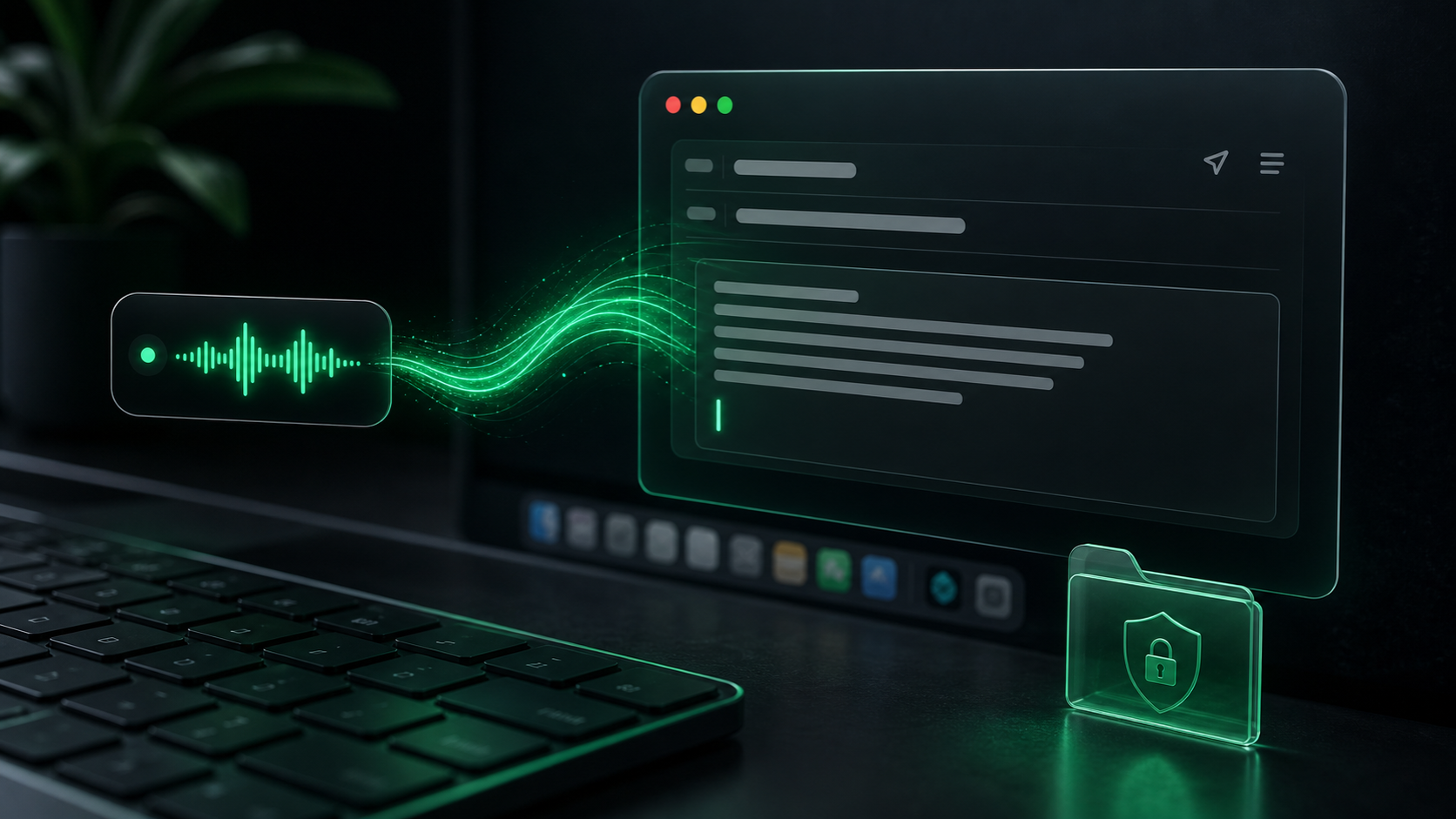
Email is one of the easiest places for dictation to help, and one of the easiest places for it to go wrong.
The problem is not usually the microphone. It is that spoken language and email language have different jobs. When you talk, you loop back, qualify, restart, and add context as it appears. When someone reads an email, they expect the point, the context, and the next step to arrive in a clean order.
That means the goal is not to dictate a perfect email in one breath. The goal is to use voice for the messy first pass, then edit it into something a person can act on.
Start with the job of the email
Before you press the hotkey, decide what the email needs to do.
Most work emails fall into a few practical jobs:
- Ask for a decision.
- Confirm what changed.
- Send a short update.
- Explain a problem.
- Share context before a meeting.
- Follow up after a conversation.
- Say no without sounding careless.
That job should shape the dictation. A quick status update can start as short spoken blocks. A sensitive explanation may work better as dictated notes first, then a final message composed from those notes.
Do not start with "Dear..." unless you already know the whole shape. Start by speaking the substance:
"The point of this email is to confirm that the timeline moved by one week because design review needs another pass. I need Alex to approve the revised date by Thursday."
That sentence may not survive into the final draft, but it gives the email a spine.
Dictate in chunks, not one long monologue
A long spoken paragraph often becomes a long written paragraph. That is fine for notes. It is harder on an email reader.
Use shorter dictation passes:
- Dictate the purpose.
- Dictate the context.
- Dictate the ask or next step.
- Dictate any details that need to be checked.
This keeps the transcript editable. If one section comes out messy, you only fix that section, instead of rescuing one long paragraph that drifted halfway through.
With SpeakLane, the fastest setup is a global push-to-talk hotkey and auto-insert into the focused app. Put the cursor in Mail, Gmail, Outlook, Notion, Linear, or wherever you are drafting, hold the shortcut, speak one section, release, then review before adding the next section.
That small pause is important. It turns dictation into drafting instead of dumping.
Speak the structure out loud
When you are typing, formatting is visible. When you are speaking, it helps to say the structure before the wording.
Try phrases like:
- "Start with the decision."
- "Add two bullets."
- "End with the question."
- "Make this a short follow-up."
You may remove those phrases afterward, but they help you think in sections. They also keep the draft from becoming a transcript of your thought process.
For example, instead of dictating:
"I was thinking about the proposal and I think maybe we should move the launch because the review is not done and I know that is annoying but I think it is better than rushing it."
Dictate:
"Start with the decision. We should move the launch date by one week. Design review still has open issues, and shipping before those are resolved will create rework. End with the ask. Can you confirm by Thursday whether the revised date works?"
The final email can be shorter than either version. Voice gets the reasoning out. Editing makes it readable.
Clean up spoken habits before sending
The first dictated draft will usually include words that made sense while talking but feel weak in writing.
Watch for:
- Long setup before the point.
- "I think" repeated when the sentence already implies judgment.
- Extra qualifiers like "kind of", "basically", and "just".
- Buried asks near the end of a paragraph.
- Multiple questions in one block.
Some cleanup can happen automatically. In Settings, SpeakLane can remove common filler words from the final transcript. That helps with "um" and "uh", but it will not decide whether the email is too soft, too long, or missing the actual ask.
That part is editorial. Read the draft once as the sender, then once as the recipient. The recipient test is simple: can they tell what happened, what you need, and whether there is a deadline?
Use voice for tone, then edit for precision
Dictation is useful for tone because your first spoken version often sounds more human than your typed version.
That helps with replies that need care:
- Pushing back on a request.
- Explaining why something is delayed.
- Asking a client for missing information.
- Following up without sounding impatient.
Speak the version you would say in a calm meeting. Then remove the extra scaffolding.
Spoken draft:
"I want to be careful here because I know everyone wants to keep momentum, but I do not think we should approve this version yet. The main issue is that the onboarding copy still promises something the product does not actually do."
Email version:
"I do not think we should approve this version yet. The onboarding copy still promises something the product does not do, so we should revise that section before launch."
The spoken version helped you find the tone. The written version respects the reader's time.
Keep sensitive drafts local until they are ready
Email drafts often contain private context before they become shareable messages.
You might dictate the real reason a project is late, a customer detail that needs anonymizing, or a rough version of feedback that would be too blunt if sent unchanged.
That is a good reason to separate capture from sending. Dictate the rough material locally, review it, then paste or insert only the final version into the email if the content is sensitive.
SpeakLane's local workflow is useful here because dictation, transcript history, and recordings can stay on your Mac while you are shaping the message. The final email may still go through Gmail, Outlook, Apple Mail, or a customer system, but the rough draft does not need to become the shared artifact.
Use History as a safety net, not a dumping ground. If a transcript contains sensitive details that were only useful while drafting, prune it when the email is done.
Pick a stronger model for names and details
Most email dictation is forgiving. A short reply can tolerate a small correction.
Names, company terms, ticket numbers, product names, dates, and quotes are different. Those are the parts that create confusion when they are wrong.
If you are dictating an email with important details, slow down and check the result. For name-heavy or technical messages, try a more accurate local model in Settings > Models. A faster model may be fine for casual drafts, but a higher-accuracy model can save cleanup time when the message includes terms you cannot afford to mangle.
Even then, verify details manually before sending. Dictation should speed up the draft, not remove your responsibility for the final wording.
A practical email dictation routine
Use this the next time you need to write an email and do not want to stare at a blank compose window:
- Decide the job of the email.
- Dictate the purpose in one or two sentences.
- Dictate context and details in separate chunks.
- Put the ask or next step where the reader can find it.
- Remove filler, repeated qualifiers, and buried setup.
- Check names, dates, numbers, and commitments.
- Read it once as the recipient.
- Send only the cleaned version.
That routine works because it does not ask voice dictation to behave like finished writing. It lets speech do what it is good at: getting the thought out before you over-edit it.
The final email still needs judgment. But starting from a spoken draft is often easier than starting from an empty field, especially when the message is nuanced, awkward, or full of context you would rather say than type.