How to dictate into any Mac app with a hotkey
A practical workflow for turning a Mac dictation shortcut into clean text where you are already working.
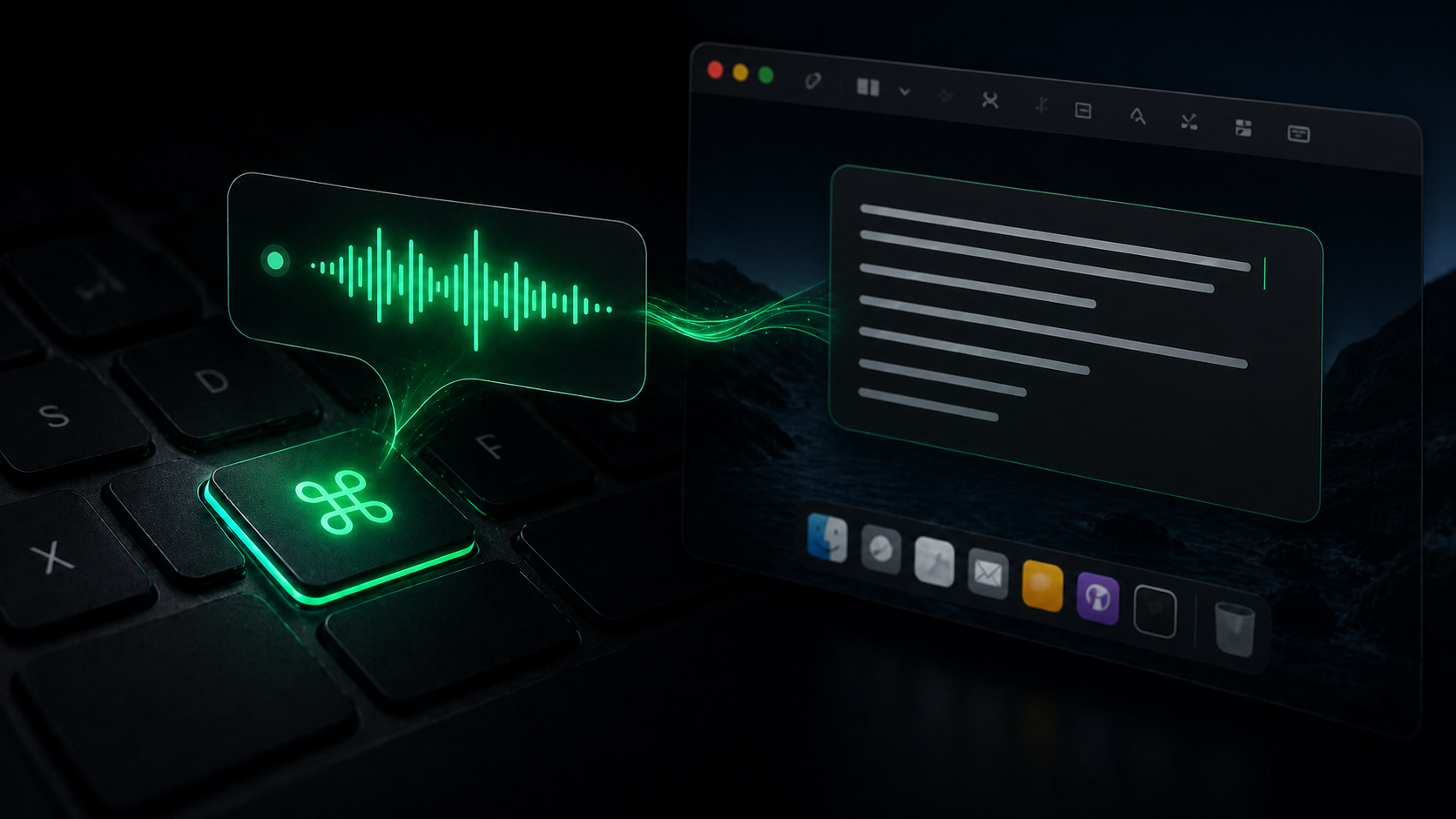
The fastest dictation workflow is usually not a big recording window. It is a shortcut you can press while your cursor is already in Mail, Notes, Slack, Cursor, Notion, or the document you meant to write in.
That small difference matters. If you have to switch tools before speaking, dictation becomes a separate chore. If you can press a hotkey, talk through the rough version, and let the transcript land where the work is happening, voice starts to feel like another Mac input method.
Here is a simple way to set that up without turning every sentence into a production.
Start with one reliable shortcut
Pick a hotkey you can press without thinking. It should be easy to reach, but not so common that it collides with macOS or the apps you use all day.
A good shortcut has three qualities:
- It includes at least one modifier key, such as Command, Option, Control, or Shift.
- It does not override a shortcut you already use for writing, search, screenshots, or app switching.
- It is comfortable enough to hold while you speak a short thought.
In SpeakLane, you can set this from Settings > Hotkey. The workflow is push-to-talk: press and hold to start dictation, then release to stop and process the transcript.
That gesture is worth keeping. Holding the shortcut creates a clear boundary around the recording. You do not have to wonder whether the app is listening, and you are less likely to capture the side comments that happen before or after the real note.
Put the cursor where the words should go
Before pressing the hotkey, click into the field or document where you want the text to appear. This sounds obvious, but it is the habit that makes system-wide dictation feel smooth.
For example:
- Click into an email reply, then dictate the rough answer.
- Put the cursor in a task description, then say the context and acceptance criteria.
- Open a blank note, then talk through the decision before editing it down.
- Focus an AI prompt field, then dictate the messy background you would not want to type.
The key is to avoid dictating into a scratchpad unless you need one. Scratchpads are useful for long or sensitive drafts, but they add another copy-paste step. For quick daily work, the focused app should be the destination.
SpeakLane can auto-insert the finished transcript into the focused app when Accessibility permission is enabled. If you prefer a more manual workflow, or if a particular app resists insertion, auto-copy puts the transcript on your clipboard instead. Both options are in Settings.
Speak in chunks, not monologues
Short dictations are easier to trust. They finish faster, they are simpler to review, and they keep the editing job small.
For everyday writing, aim for one unit of thought at a time:
- One paragraph of an email.
- One bug report description.
- One meeting follow-up.
- One product idea.
- One prompt for an AI coding assistant.
This keeps voice in its best role: capture. You are not asking the transcript to be final copy. You are asking it to get the thought onto the page before you lose the thread.
After the transcript appears, switch back to the keyboard for the detail work. Delete the repeated phrase. Move the strongest sentence up. Fix the product name. Add the link. That split is usually faster than trying to dictate a perfect paragraph out loud.
Use auto-insert for flow and clipboard for control
There is no single best output setting. It depends on how much control you want at the end of each recording.
Auto-insert is best when you are writing directly into the target app and want the least friction. It is the natural choice for short notes, quick replies, and prompt drafting. You speak, release the hotkey, and the text appears where the cursor was.
Auto-copy is better when you want to review before placing the transcript. It is also a useful fallback for apps where direct insertion is unreliable. The transcript still gets produced locally, but you decide when and where to paste it.
If you are setting up SpeakLane for the first time, try this sequence:
- Run a short test from the menu bar.
- Enable auto-copy first so you can inspect the output.
- Turn on auto-insert once you trust the shortcut and model.
- Keep history enabled so finished transcripts are not lost if you paste over the clipboard.
That gives you a safe path from testing to daily use.
Make the first sentence do less work
The first few words of a dictation often carry too much pressure. People start with a polished opening, stall, then restart. It is better to begin with context.
Instead of trying to dictate:
"Thanks for sending this over. I think the timeline is workable, but..."
Start with:
"Reply to Maya. Say the timeline is workable if we get the assets by Thursday. Mention that Friday is risky because engineering is already booked."
That transcript is not the final message, but it contains the decisions. You can turn it into a polished reply quickly because the hard part, knowing what you mean, is already visible.
The same trick works for tasks, notes, and AI prompts. Speak the intent first. Clean the wording after.
Tune the model to the moment
Not every recording deserves the same transcription settings. A quick reminder does not need the same care as a client note, interview clip, or technical prompt.
Use a lighter local model when speed matters and the audio is clean. Use a stronger model when names, technical terms, noisy rooms, or important wording make accuracy more valuable than speed.
The important part is that model choice should support the workflow, not interrupt it. If you are testing the hotkey habit, start with a fast setup. Once the shortcut feels natural, adjust for accuracy where it pays off.
Keep history as the safety net
Dictation feels riskier when the transcript exists in only one place. If the text inserts into the wrong field, the clipboard changes, or you close a window too quickly, you should still be able to recover the session.
That is why local history is worth leaving on while you build the habit. It gives you a place to review recent transcripts and recordings without turning every dictation into a file-management task.
You can learn the basic first-run flow in Run your first dictation, then add the hotkey once the output settings feel right.
The workflow to practice
For the first day, keep it deliberately small:
- Click into the app where the text belongs.
- Hold your dictation hotkey.
- Speak one thought, not the whole document.
- Release the hotkey.
- Let the transcript insert or copy.
- Edit with the keyboard.
Repeat that for short replies, rough notes, and AI prompts before trying longer drafts.
The point is not to replace typing. The point is to stop losing thoughts at the exact moment typing becomes too slow. A hotkey makes dictation available at that moment, inside the app where the thought already belongs.