Dictating better AI prompts on Mac
A practical workflow for speaking longer, clearer AI prompts without turning dictation into another app-switching chore.
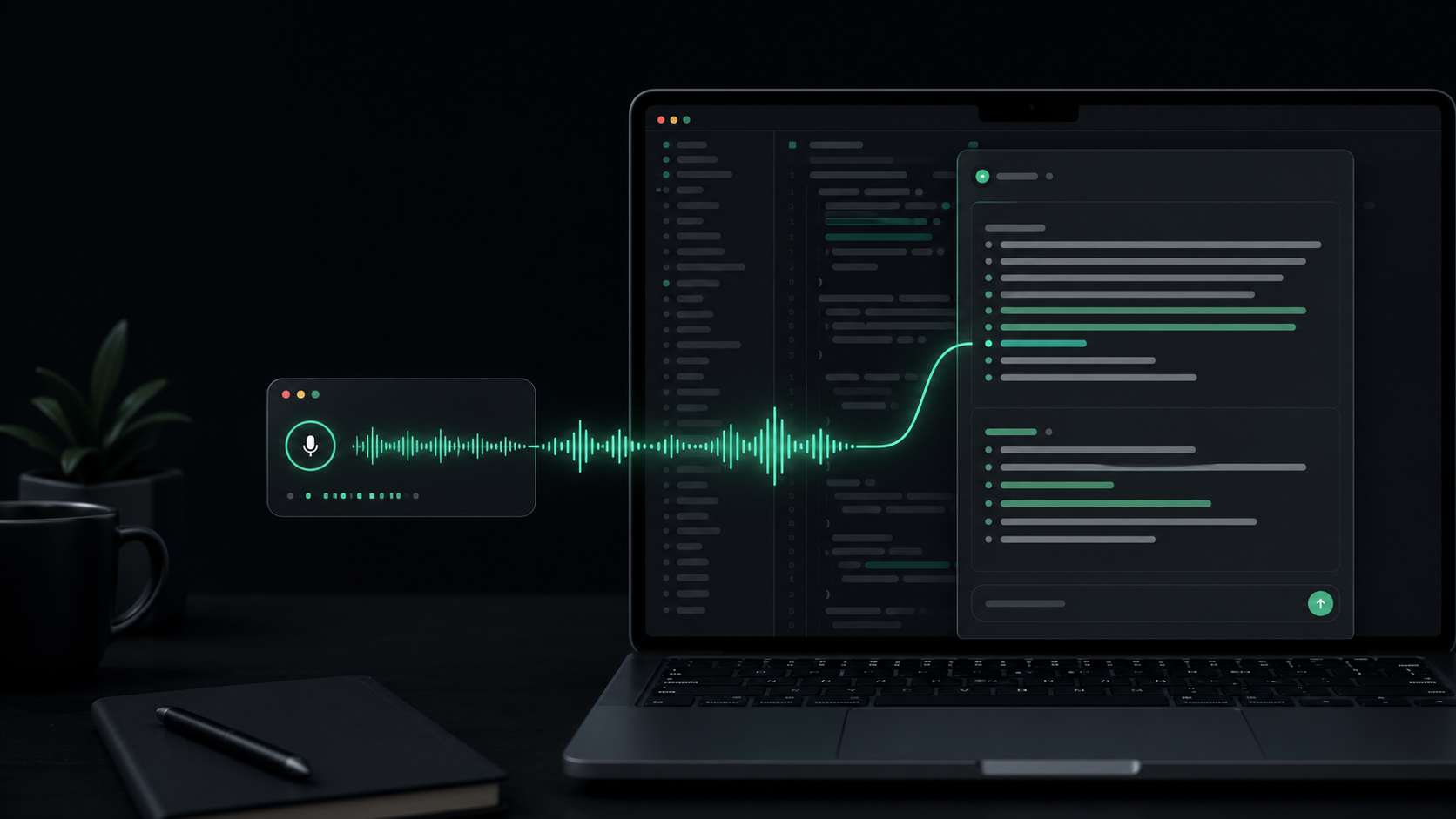
Typing short prompts is easy. Typing the whole context behind a decision, bug, customer request, or product idea is where people cut corners.
That is the problem voice can solve. Not because spoken prompts are automatically better, but because speaking makes it easier to include the messy background you would otherwise omit: what you tried, what failed, what tone you want, what constraints matter, and what you do not want the model to change.
The trick is to use dictation for context capture, then use the keyboard for judgment. Here is a practical workflow for turning spoken thoughts into useful AI prompts.
Start with the outcome
Before you press a hotkey, decide what you want the AI tool to produce.
That sounds basic, but it prevents the most common voice-prompting mistake: narrating everything you know without giving the model a job.
Useful starting points are simple:
- "Draft a reply."
- "Find the likely bug."
- "Turn this into a release note."
- "Explain the tradeoff."
- "Give me three implementation options."
- "Rewrite this for a customer who is frustrated."
Say the outcome first, then add the context. A strong spoken prompt often begins like this:
Help me write a concise product update. The audience is existing customers. The feature is local file transcription. The important detail is that audio stays on the Mac. Do not make it sound like an enterprise compliance announcement.
That opening gives the model direction before the details arrive. It also gives you a cleaner transcript to edit because the prompt has a center of gravity.
Speak the context you usually skip
The value of voice is not that it saves a few seconds on a one-line instruction. The value is that it makes long context less annoying to provide.
For AI coding, that might mean saying:
- What file or feature you are working on.
- What behavior is wrong.
- What you already checked.
- Which constraint cannot change.
- What kind of answer you want back.
For writing, that might mean saying:
- Who the reader is.
- What they already believe.
- What tone would be wrong.
- Which facts must stay intact.
- Where the draft will be used.
This is where dictation beats typing for many people. A spoken prompt can include the "one more thing" details that make the AI response less generic.
Use chunks instead of one long recording
Long monologues are tempting, but they create two problems. The transcript is harder to review, and one misheard term can get buried in a wall of text.
Prompt in chunks instead:
- Dictate the goal and audience.
- Dictate the background or source material.
- Dictate the constraints.
- Dictate the output format.
Then pause and clean up before sending.
This is especially useful for technical prompts. If a function name, product name, or file path matters, keep that part short enough to inspect. Voice is good at getting the shape of the problem onto the page. The keyboard is still better for exact identifiers.
In SpeakLane, the push-to-talk hotkey works well for this because each recording has a clear boundary. Hold the shortcut, speak one unit of context, release, review, then continue.
Dictate like you are handing work to a teammate
Good prompts are not just instructions. They are handoffs.
If you were giving the task to a teammate, you would not only say "fix this." You would say what changed, what you suspect, what would count as done, and what needs to be preserved.
Use the same pattern when speaking to an AI tool:
- "Here is the goal..."
- "Here is the current behavior..."
- "Here is the constraint..."
- "Here is what I already tried..."
- "Here is what I want back..."
That structure is easy to say out loud. It also survives transcription well because each phrase creates a clear section in the prompt.
For example:
Here is the goal. I want a calmer onboarding email for a Mac utility. Here is the current problem. The draft sounds too excited and says too much. Here is the constraint. Keep the setup steps, but remove the hype. Here is what I want back. Give me one finished version and a short explanation of what changed.
The prompt is not fancy. It is just complete.
Keep sensitive rough context local when you can
AI prompts often contain raw thinking: client names, proprietary plans, private notes, half-formed opinions, pasted bug details, and internal tradeoffs.
That does not mean you should never use voice. It means the capture step deserves the same privacy judgment as the final prompt.
Local dictation helps because the rough audio can be turned into text on your Mac before you decide what to paste into an AI service. You still need to decide what belongs in the prompt itself, but you are not adding a separate cloud transcription hop just to get your thoughts onto the page.
This is one of the cleaner uses for a local-first tool like SpeakLane: dictate into the app where you are already working, review the transcript, remove anything that should not leave your machine, then send only the prompt you actually mean to send.
Use auto-insert for flow, clipboard for review
There are two good ways to place dictated prompts.
Auto-insert is best when you are working in a trusted text field and want the lowest-friction loop. Click into the prompt box, hold the hotkey, speak, release, and let the transcript appear where the cursor is.
Clipboard is better when the prompt needs a review pass before it lands anywhere. You can dictate into a note, inspect the transcript, remove sensitive details, fix names, and paste only the final version.
Neither mode is universally better. The right choice depends on how sensitive the context is and how much cleanup you expect. You can adjust this in Settings.
Choose the model for the prompt
Not every prompt needs the same transcription setup.
Use a faster local model when you are drafting short, low-risk instructions or brainstorming variations. Use a stronger model when the prompt includes technical terms, names, quotes, noisy audio, or source material you do not want to retype.
The point is not to chase perfect transcription for every sentence. The point is to spend accuracy where mistakes are expensive.
If you regularly dictate technical prompts, it is worth testing a few recordings with the same paragraph and switching models in Settings > Models. Look for the kind of errors you actually care about: product names, acronyms, code-adjacent phrases, punctuation, and whether the transcript keeps your sentence boundaries clear enough to edit.
Clean before you send
The final step is the one people skip: edit before submitting.
Voice is excellent for getting the raw material down. It is not always the best final form. Before sending, scan for four things:
- Remove repeated setup that does not change the request.
- Correct names, filenames, and technical terms.
- Add the output format if you forgot it.
- Delete sensitive context that helped you think but should not be shared.
That last pass is where the prompt becomes intentional. Dictation captures the context; your final typed edits make it precise.
A simple prompt workflow to practice
For the next few AI prompts, keep the routine deliberately small:
- Click where the prompt belongs.
- Dictate the desired outcome.
- Dictate the background in one or two chunks.
- Add constraints and output format.
- Edit names, details, and sensitive context.
- Send the prompt only when it says what you mean.
That workflow is slower than a one-line prompt, but usually faster than getting a vague answer and asking three follow-ups.
Voice is useful here because it lowers the cost of providing context. The better habit is not "speak everything." It is "capture the full thought, then decide what the AI tool actually needs."