Turn voice notes into clean text without uploading them
A practical workflow for turning voice memos, clips, and recordings into usable transcripts while keeping the source files on your Mac.
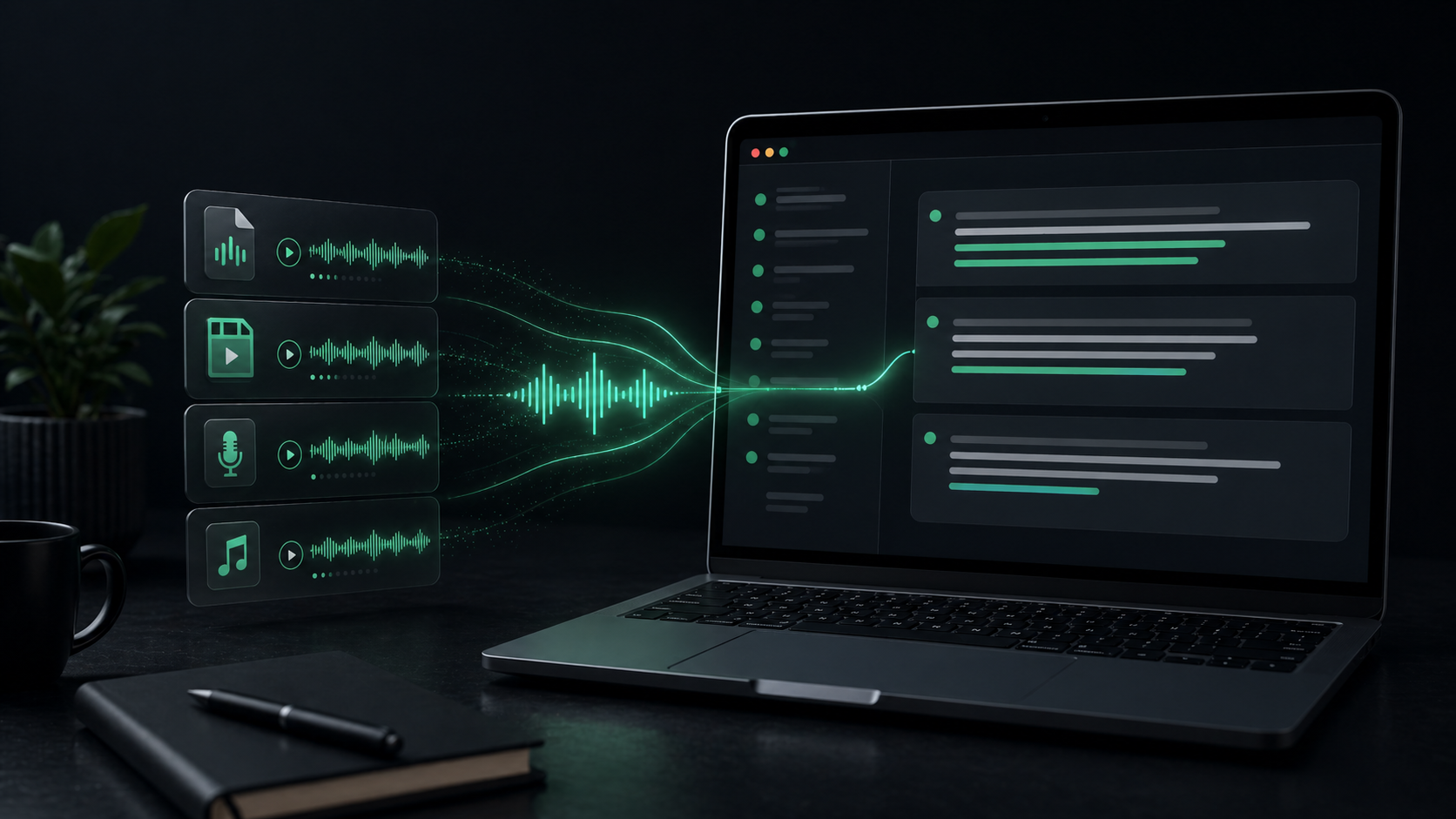
A voice note is useful because it is low friction. You can capture the messy version of a thought while walking, after a call, between meetings, or before you know exactly what the idea is.
The problem comes later. A folder of recordings is hard to search, hard to quote, and easy to ignore. The value is trapped in audio until you turn it into text.
For private notes, client material, interview clips, or internal planning, that transcription step deserves a little care. You do not always need a hosted service just to find out what is inside your own recording. A local workflow lets you turn files into readable text while keeping the raw audio on your Mac.
Start by deciding what the transcript is for
Not every recording needs the same kind of cleanup.
Before you transcribe, decide what you want the text to become:
- A searchable archive of voice memos.
- A rough draft for an email, post, or proposal.
- Notes from a research interview.
- Pull quotes from a podcast or video clip.
- Context for a task, ticket, or AI prompt.
That choice changes how much accuracy matters. A private brainstorm can tolerate a few rough edges because you only need the gist. A customer interview, quote, or technical note needs closer review because names, numbers, and phrasing carry more weight.
This is the first useful split: transcription captures the recording; editing decides what is worth keeping.
Keep the original file local
Voice files often contain more than the words you meant to preserve. They can include names, background comments, personal details, client context, and stray thinking that would never make it into the final note.
That does not mean every recording is high risk. It means uploads should be intentional.
A local transcription workflow keeps the source file on your Mac while it is converted into text. You still need to decide what to do with the finished transcript, especially if you paste it into another app, but you have removed one unnecessary handoff from the process.
This is especially useful for recordings that sit in the middle ground: not regulated or dramatic, just private enough that uploading them to a random web tool feels wrong.
Examples include:
- A consultant's voice memo after a client call.
- A founder's product notes after a customer conversation.
- A researcher's interview clip before the formal write-up.
- A creator's rough outline for a video or newsletter.
- A developer's spoken bug notes before opening a ticket.
The common thread is control. You can inspect the transcript first, remove anything sensitive, and decide where the text belongs.
Use file transcription for finished recordings
Live dictation is best when you want text to appear in the app you are using right now. File transcription is better when the recording already exists.
In SpeakLane, you can use Transcribe File for audio and video files such as m4a, mp3, wav, aac, mp4, and mov. The transcript is saved into local history when processing completes, which gives you a place to return to it without managing another export folder right away.
That makes a simple routine possible:
- Record the note in Voice Memos, QuickTime, a recorder, or your camera app.
- Drop the file into local transcription.
- Review the transcript from history.
- Copy only the useful parts into your note, document, task, or prompt.
The important part is that the recording and transcript can stay close to the rest of your Mac workflow. You do not have to upload the file, wait in a browser tab, download a transcript, and remember where it landed.
Choose speed or accuracy based on the recording
Some voice notes are easy. They are short, clean, and spoken close to the microphone. Others are noisy, long, full of names, or recorded in a room where someone else was talking.
Use that difference to pick your model.
A faster local model is usually enough for short personal memos, rough outlines, or recordings where you only need the main points. A stronger model is worth trying when the file includes:
- Product names, customer names, or technical terms.
- Multiple sections that you do not want to retype.
- Background noise or distance from the microphone.
- Source material you plan to quote or summarize carefully.
- Audio from a video, meeting clip, or interview.
The model settings are not just a power-user detail. They are a practical tradeoff between turnaround time and the amount of cleanup you expect after the transcript appears.
If you are building a repeatable workflow, test the same file with two models and compare the errors that actually matter to you. Do not judge only by whether the transcript reads nicely. Look for the names, numbers, acronyms, and sentence breaks you would otherwise have to fix manually.
Clean the transcript before you reuse it
A transcript is not automatically a finished note. It is raw material.
For voice memos, the cleanup pass is usually where the value appears. You remove the false starts, keep the useful line, and turn a loose thought into something another person, or your future self, can understand.
Use a quick review checklist:
- Fix names, dates, prices, and product terms.
- Delete repeated setup and filler that does not change the meaning.
- Split long paragraphs into smaller chunks.
- Add headings if the recording covered more than one topic.
- Mark anything uncertain instead of pretending the transcript is perfect.
This last point matters for interviews and client work. If a phrase is important, listen back before treating it as exact. Local transcription reduces upload friction; it does not remove your responsibility to verify sensitive or quoted material.
Turn history into a lightweight archive
One of the underrated benefits of transcription is searchability. Audio files are easy to accumulate and hard to revisit. Text can be scanned, copied, summarized, linked, and searched.
Leaving local history enabled gives you a safety net for recent transcripts. It is useful when you remember that you said something last week but cannot remember which voice memo contains it.
You can keep the archive lightweight by naming or moving only the transcripts that deserve long-term storage. Most voice notes do not need a formal system. They need a reliable place to land until you decide whether they matter.
For a weekly review, try this:
- Open recent transcripts.
- Copy the useful ones into your notes or project docs.
- Delete or ignore the throwaway captures.
- Keep the source recording only when the audio itself has value.
That keeps the workflow from turning into a second inbox.
Watch for three common mistakes
The first mistake is transcribing everything. If a recording has no future use, leave it alone. Transcription should reduce friction, not create more documents to maintain.
The second mistake is treating every transcript as final. Voice is messy. The output often needs a small editorial pass before it becomes useful.
The third mistake is using one model setting for every file. A fast model for throwaway notes and a stronger model for important recordings is a better default than forcing every file through the same path.
A simple workflow to practice
Pick one folder of existing recordings and keep the process small:
- Choose a short voice memo.
- Transcribe it locally.
- Review the transcript from history.
- Copy the useful section into the place it belongs.
- Delete, archive, or ignore the rest.
Do that a few times before building a more elaborate system.
The goal is not to turn every spoken thought into polished writing. The goal is to stop letting useful recordings disappear because audio is inconvenient to search. Local transcription gives those notes a second life while keeping the raw files under your control.