Whisper dictation on Mac: what local speech-to-text actually means
A plain-English guide to local Whisper dictation on Mac, where it helps, and what to check before you rely on it for daily work.
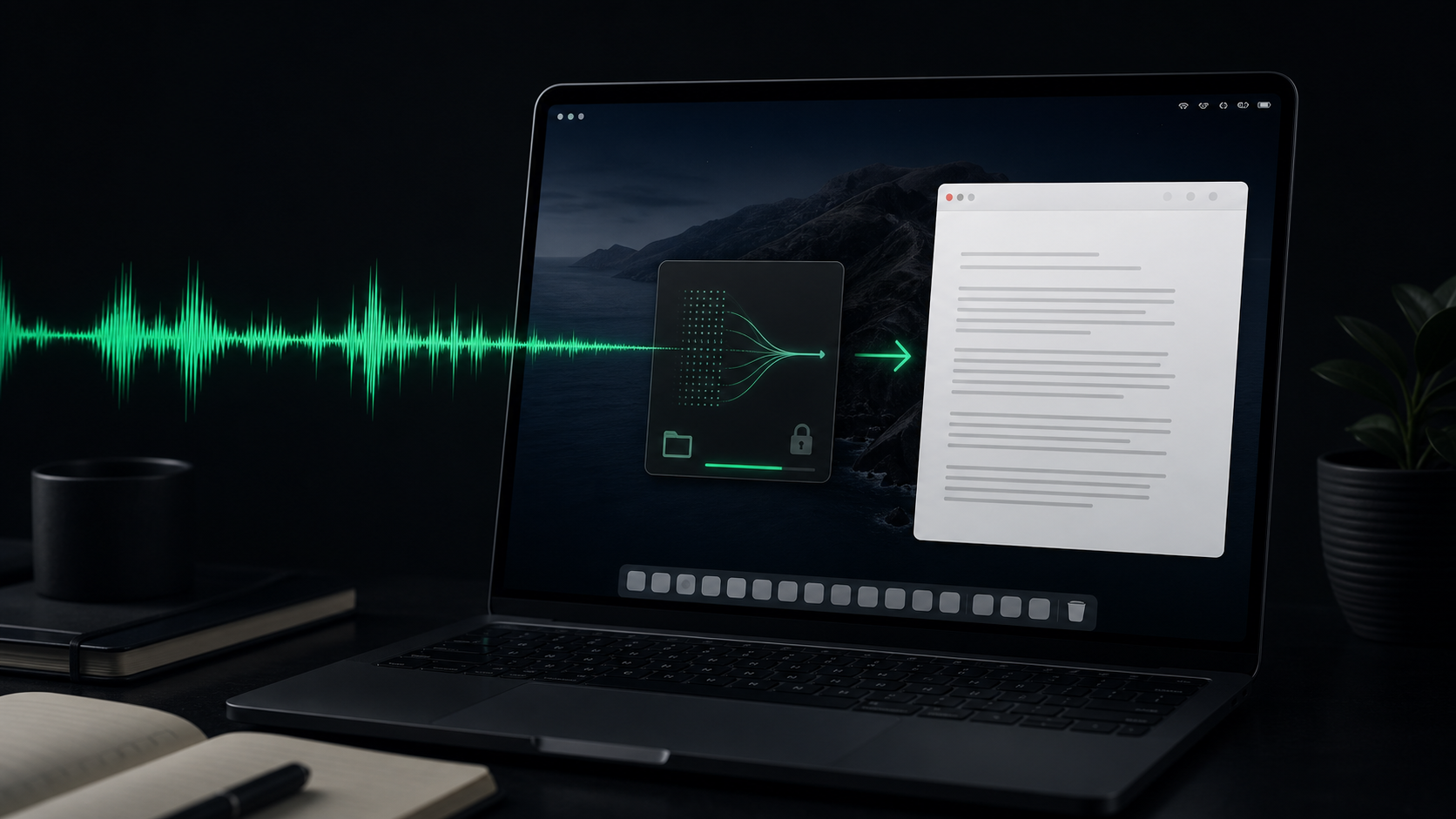
"Whisper dictation" can sound like a model choice, but for Mac users it is really a workflow choice.
You are deciding where your voice is processed, how quickly spoken thoughts become editable text, what happens when insertion fails, and whether the tool feels light enough to use in the middle of real work. The model matters. The surrounding app matters just as much.
If you are trying to choose between built-in dictation, cloud voice tools, file transcription apps, and a local Mac utility, here is the practical version of what local Whisper-style dictation means.
Start with the privacy boundary
The most important difference is where the audio goes before it becomes text.
In a local workflow, the recording is processed on your Mac. That does not make every later step private. If you paste the transcript into a browser app, send it to a teammate, or use it inside an AI chat, that destination has its own rules. But local transcription removes one handoff at the moment your raw voice is most exposed.
That matters more than people expect. Spoken drafts often include the messy parts: names, client context, internal reasoning, product plans, half-finished opinions, and corrections you would never type into a hosted form. When the first pass stays on your machine, dictation becomes easier to use for rough work instead of only safe, polished sentences.
For a deeper privacy checklist, see A privacy checklist for dictating client work on Mac.
Local dictation is not only for offline work
Offline capability is useful, especially while traveling or working on an unreliable connection. But the bigger benefit is consistency.
When speech-to-text depends on a network round trip, the experience can change with connection quality, service limits, account state, and whatever else is happening between your Mac and the server. A local model makes dictation feel more like a Mac input method: press a shortcut, speak, process, insert or copy the text.
That predictability is valuable even when you have perfect Wi-Fi. It lets you build a habit around a small loop:
- Put the cursor where the text should go.
- Press and hold a hotkey.
- Speak the rough version.
- Release and review the transcript.
SpeakLane's push-to-talk hotkey is built around that loop. The goal is not to make dictation dramatic. It is to make it boring enough that you use it without planning a separate transcription session.
Model size is a tradeoff, not a trophy
Local Whisper-style models usually give you a choice between speed, accuracy, and resource use. The mistake is assuming the biggest available model is always the right daily setting.
For short notes, quick replies, and messy first drafts, a faster model can be better because it keeps the feedback loop tight. If every paragraph makes you wait, you will stop using voice for small thoughts, and small thoughts are where dictation earns its place.
For name-heavy recordings, technical prompts, client notes, interviews, or reusable transcripts, a stronger model may save more time than it costs. The right question is not "which model is best?" It is "which model gives me text I trust for this job?"
Use this simple split:
- Fast capture: quick notes, everyday replies, rough AI prompt context, first drafts you plan to edit.
- Careful transcription: files, quotes, noisy audio, names, acronyms, customer details, research notes.
If you want a more detailed breakdown, the model guide covers Tiny, Base, Small, Medium, Large, and Turbo in practical terms.
The app around the model decides whether dictation sticks
A transcription model can produce text. A dictation workflow has to get that text where you need it.
That is where Mac utility details matter:
- Can you start dictation from anywhere without switching apps?
- Does the transcript insert into the focused app, or at least copy to the clipboard?
- Is there a history folder if the paste fails or you need to find an older note?
- Can you change models without editing config files?
- Can you transcribe an existing audio or video file with the same local setup?
- Are cleanup options simple enough to trust?
Those questions are less exciting than accuracy demos, but they are what decide daily use. A tool that creates a good transcript in the wrong place still interrupts your work. A tool that saves history locally gives you a recovery path when a text field, permission, or app focus behaves badly.
In SpeakLane, the main knobs live in Settings: model selection, auto-copy, auto-insert, filler word cleanup, Metal acceleration, CPU threads, and history storage. You do not need to tune all of them on day one, but they should be visible when the default is not quite right.
Live dictation and file transcription are different jobs
People often mix these together because both turn audio into text. In practice, they feel different.
Live dictation is about momentum. You are thinking, speaking, and waiting for text to land in the app you already use. Short sessions usually work better: one email paragraph, one task description, one note, one prompt section. You can fix awkward phrasing immediately because the thought is still fresh.
File transcription is about recovery and reuse. The audio already exists, so you cannot improve the microphone position or rephrase the sentence. You need to choose a model, let the file process, then review the transcript with the source in mind.
That distinction changes the setup:
- For live dictation, optimize for a fast hotkey habit and short review loops.
- For file transcription, optimize for source audio quality, model choice, and local transcript organization.
SpeakLane handles both, but you should still evaluate them separately. A workflow that feels perfect for a three-sentence note may need a stronger model for a long screen recording. The file transcription docs explain the supported import flow and formats.
What local dictation will not solve by itself
Local processing is useful, but it is not magic.
It will not make a distant microphone sound close. It will not guarantee proper names on the first try. It will not turn every rambling recording into a finished document. It will not provide enterprise compliance paperwork just because the model runs on your Mac. And it does not control what happens after you paste the transcript into another app.
The healthiest expectation is this: local dictation gives you a private first pass that is fast enough to become a habit and good enough to edit. You still own the final text.
That is a feature, not a flaw. Voice is excellent for getting more context onto the page. Editing is still where you decide what belongs.
A good first setup
If you are starting from scratch, keep the setup simple.
Pick a hotkey that does not conflict with your normal shortcuts. Start with a balanced model rather than the largest one. Turn on auto-copy if you want to review text before pasting, or auto-insert if you want the transcript to land directly in the focused app. Keep history enabled while you are testing so you can recover anything important.
Then run three real tasks:
- Dictate a short reply into the app where you actually answer people.
- Dictate one messy paragraph of thinking and edit it into a clean note.
- Transcribe one existing file if recordings are part of your work.
Do not judge the workflow from a demo sentence. Use the words, names, apps, and recording conditions that normally create friction.
If local Whisper dictation fits, it should make speech-to-text feel less like a special tool and more like another Mac input path: controlled, recoverable, private by default, and ready when typing is the slow part.