Voice dictation for Notion on Mac: a practical workflow
A Notion-focused workflow for capturing rough spoken notes, cleaning them into useful pages, and keeping private drafts local until they are ready.
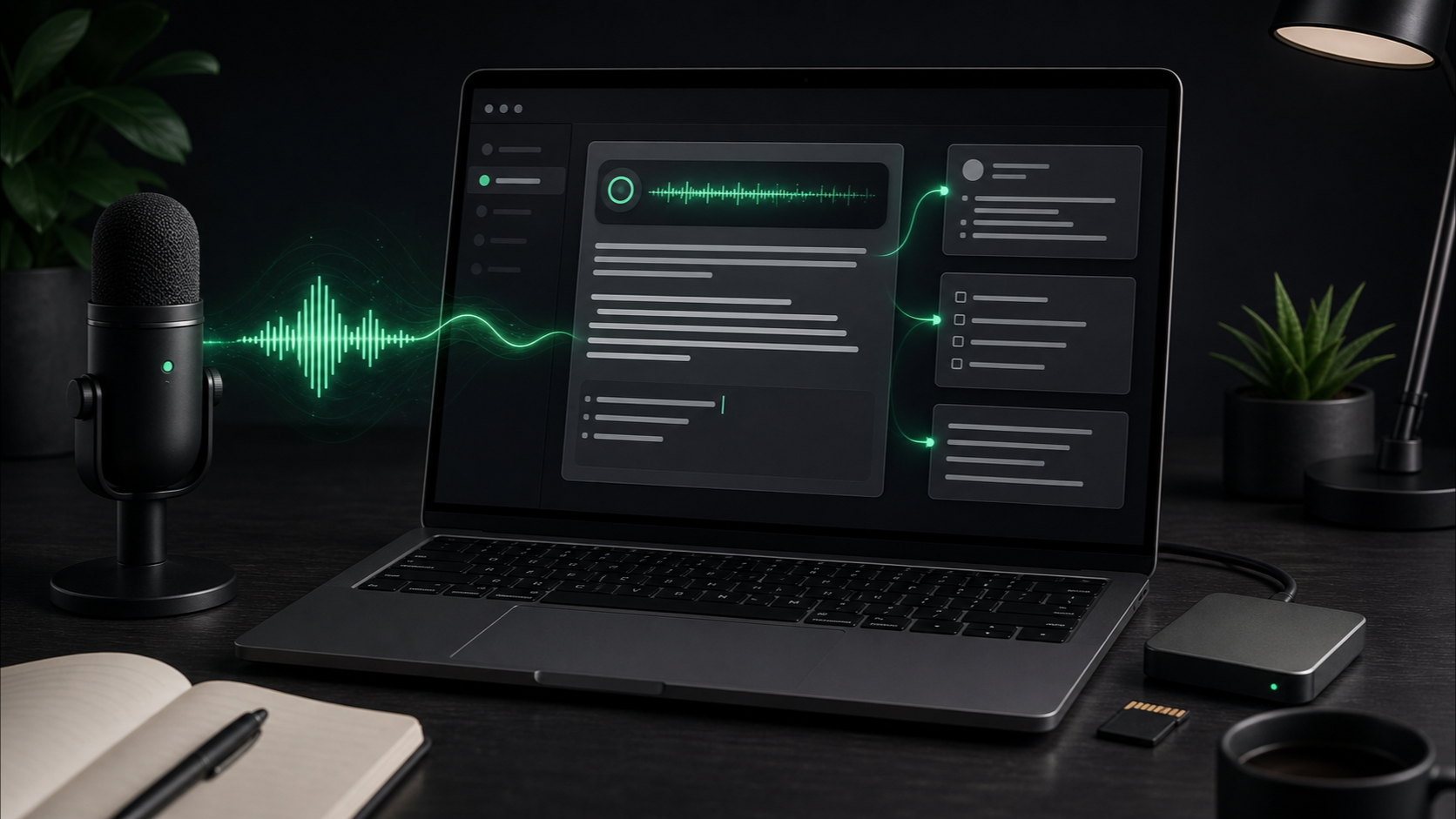
Notion is good at holding structured thinking. Voice is good at getting the unstructured version out of your head before it disappears.
The problem is the handoff between the two. If you try to dictate a polished Notion page from the first word, you will probably stall. If you paste a raw transcript into a team workspace, you may share too much context, too many half-decisions, or a paragraph that nobody wants to read.
The useful middle is a workflow: speak the rough version, turn it into text, then shape it into the Notion page that actually belongs in your system.
Use voice for capture, not final formatting
Dictation works best when it removes the first blank-page step.
That means you should not ask the transcript to become the finished Notion page. Use voice to capture the material that is hardest to type while it is still forming:
- The decision behind a project update.
- The messy reasoning after a customer call.
- A list of next steps after a meeting.
- A research note before you know the final structure.
- Context for a task, spec, or weekly review.
Once the words are visible, Notion becomes useful again. You can split paragraphs, add headings, turn lines into tasks, move a section into a database item, or trim the thought down to the part worth keeping.
Voice gets the raw material onto the page. Notion helps you organize it.
Pick the right place to dictate
Before you press record, decide whether the words should land directly in Notion or in a private scratch space first.
Dictate straight into Notion when the content is low-risk and already belongs there:
- A personal daily note.
- A quick project log.
- A rough outline in a private page.
- A first draft of a task description.
Use a scratch note first when the content includes client names, internal uncertainty, sensitive context, pricing, customer quotes, or anything you want to inspect before it reaches a shared workspace.
This is where a local dictation workflow helps. With SpeakLane, you can use a push-to-talk hotkey from the app you are already using. If Notion is focused and auto-insert is enabled, the transcript can appear at the cursor. If you want more control, set the output to copy first in Settings, review the text, then paste only the cleaned version into Notion.
That small choice prevents a lot of cleanup. Raw thinking and shared documentation should not always be the same document.
Speak in Notion-sized chunks
Long monologues are hard to review. They also turn into giant paragraphs that make Notion pages feel heavier than they need to be.
Instead, dictate one useful unit at a time.
For a meeting follow-up, record:
- The decision.
- The open question.
- The next action.
For a project page, record:
- What changed.
- Why it changed.
- What needs attention.
For a research note, record:
- The source or context.
- The useful observation.
- Why it might matter later.
Short chunks are easier to place. One transcript can become a paragraph. Another can become a checklist. Another can become a callout, task, or database note.
This also makes the dictation habit feel less risky. You are not trying to speak a whole page perfectly. You are capturing one section at a time.
Turn raw speech into blocks
Notion rewards structure. Raw transcripts usually do not have much.
After dictating, do one pass where you convert the transcript into blocks that match the page's job:
- Turn decisions into short paragraphs with a clear subject.
- Turn next steps into checkboxes or tasks.
- Turn uncertainty into an "Open questions" section.
- Turn background detail into a collapsible section or a linked source note.
- Delete throat-clearing, repeated phrases, and private scaffolding.
For example, a raw transcript might say:
I think the onboarding page needs to move the privacy claim higher because people are hesitating before they understand that the recording stays local, and we should probably test the hotkey workflow earlier too because that is the thing that makes the app feel fast.
The Notion version could become:
Onboarding change: move the local privacy message higher, then introduce the hotkey workflow earlier. The first screen should answer "where does my audio go?" before asking users to build a habit.
Then add a task:
- Test whether first-session completion improves when privacy and hotkey setup appear before advanced settings.
The transcript gave you the thinking. The Notion page gets the edited artifact.
Use templates as speaking rails
If you already use Notion templates, let them guide what you say.
A blank page invites rambling. A familiar template gives your voice somewhere to go.
For a weekly review, speak into sections like:
- Wins.
- Friction.
- Open loops.
- Next week.
For customer research:
- Context.
- Exact quote to verify.
- Pain point.
- Follow-up question.
For a product spec:
- Problem.
- Current workaround.
- Proposed behavior.
- Risks.
- Non-goals.
You do not need to say the headings out loud every time. Just use the template as a mental checklist. Dictate one section, stop, review, then move to the next one.
This is especially useful for people who think faster than they type. The template keeps the spoken draft from turning into a pile of related thoughts with no order.
Keep the private draft local until it is useful
Notion often becomes a team space. That makes it tempting to put everything there immediately, but the first transcript is sometimes too raw for that.
A dictated draft can include false starts, names you should remove, background context that does not belong in the final note, or uncertainty that was useful while thinking but distracting for readers.
Keeping the raw capture local gives you a buffer. SpeakLane's local history can act as a recovery layer for recent transcripts and recordings. You can pull the useful text into Notion, then leave behind the messy source material when it has served its purpose.
The rule is simple: Notion should hold the durable record. Your local dictation history can hold the working draft long enough for you to decide what deserves to become durable.
Check the details before you share
Dictation is fast, but Notion pages often become source material for other people.
Before sharing a dictated page, check the details that create confusion when they are wrong:
- People, company, and project names.
- Dates, numbers, prices, and timelines.
- Product terms, acronyms, and branch or ticket names.
- Words like "approved", "blocked", "ready", and "final".
- Any quote you plan to treat as exact.
If a note is important, listen back or compare against the source before promoting it from draft to team record. A local transcript is a starting point, not a guarantee.
For name-heavy notes, try a stronger model in Settings > Models. For quick private notes, a faster model may be enough. The right setting is the one that reduces the cleanup you actually care about.
A simple Notion dictation routine
Try this routine for one week:
- Choose one private Notion page for rough captures.
- Set a comfortable dictation hotkey.
- Dictate one section at a time instead of a full page.
- Convert each transcript into Notion blocks: paragraph, checklist, question, or task.
- Move only the cleaned version into shared pages or databases.
- Keep history on while you build the habit, then prune anything you no longer need.
The goal is not to replace Notion's structure with a wall of speech. The goal is to make it easier to get real context into Notion before the thought gets flattened into a short, incomplete note.
Voice is for the first draft of the thought. Notion is for the version you can find, share, and act on later.