How to use text snippets with Mac dictation
A practical workflow for fixing repeated names, phrases, and shortcuts before dictated text lands in your Mac apps.
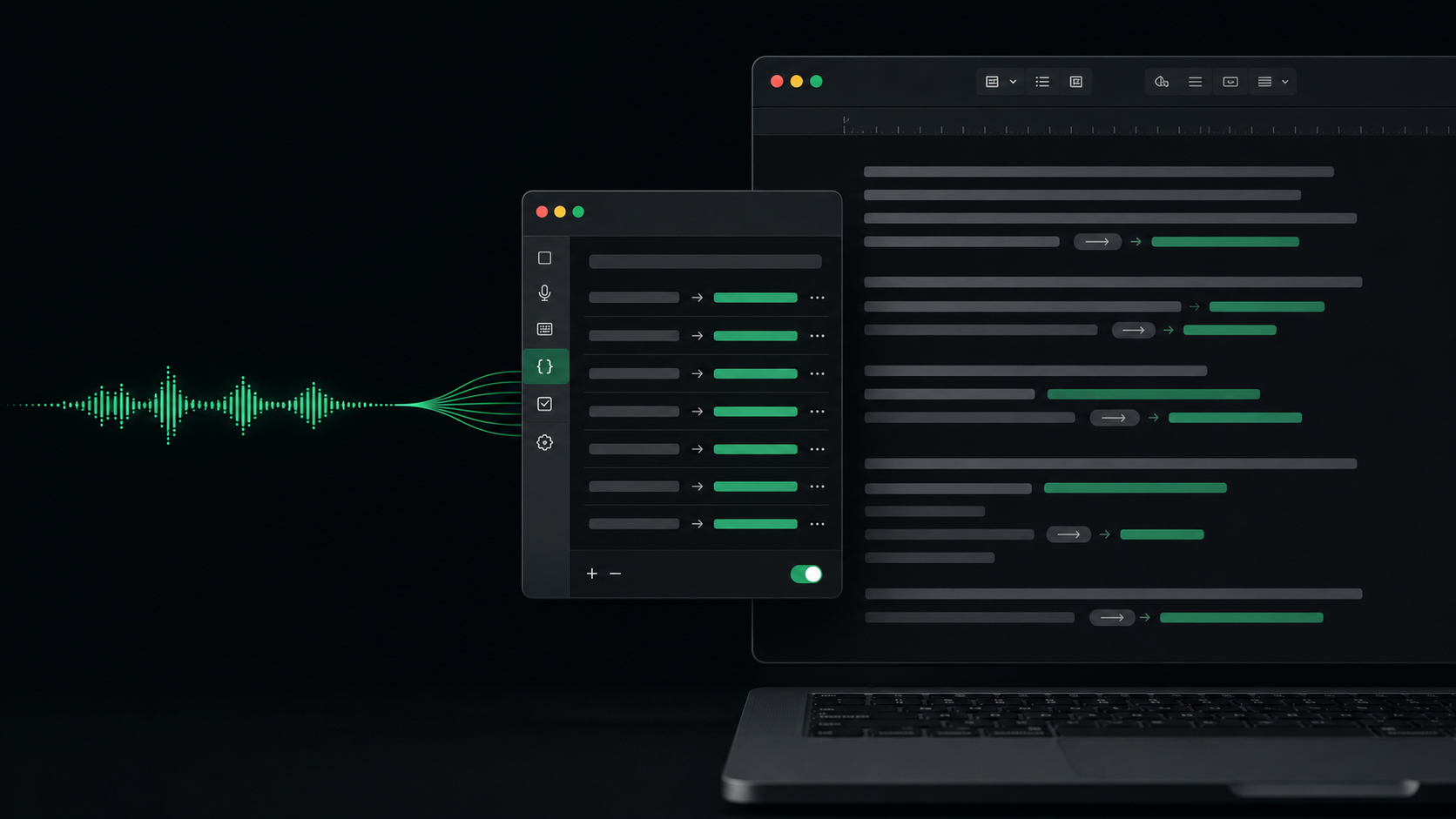
Dictation gets frustrating when the same small mistake keeps showing up.
Maybe a client name comes back wrong every time. Maybe your project acronym turns into a normal word. Maybe you always say a short phrase out loud because it is easier than spelling the exact version you want pasted into Slack, Mail, Notion, Cursor, or a support tool.
You can fix those mistakes by editing every transcript manually. That works once. It gets old by the fifth correction.
Text snippets are for the phrases you already know you will need again. They do not make dictation perfect, and they should not turn your writing into a pile of canned templates. Used carefully, they remove predictable cleanup so you can spend your review time on meaning, tone, and accuracy.
What snippets are good at
In SpeakLane, snippets replace exact phrases in the final transcript before the text is inserted or saved. That timing matters. The cleanup happens after transcription, but before the result lands in the app where you were typing.
That makes snippets useful for repeated corrections such as:
- Product names with unusual capitalization.
- Client names, team names, and project names.
- Acronyms that dictation tends to hear as ordinary words.
- Common support phrases you want written consistently.
- Short verbal shortcuts that should expand into a longer line.
- Repeated formatting patterns for notes, tickets, or updates.
Think of snippets as a small correction layer between rough speech and usable text.
They are not a replacement for review. Proper nouns, dates, numbers, and sensitive details still deserve a quick read. But snippets can take the most predictable work off your plate.
Start with corrections, not templates
The easiest mistake is to build snippets before you have real evidence that you need them.
Do not start by creating a large library of generic phrases. Start with the corrections you already make by hand.
A practical first set might look like this:
- A product name that needs exact capitalization.
- A client or company name that dictation regularly mishears.
- A project codename that sounds like a common word.
- Your preferred spelling for a technical term.
- A short phrase that should expand into a standard handoff line.
Keep the trigger phrase close to what you naturally say. If you have to pause and remember artificial commands, the snippet will not become part of your workflow.
For example, acme migration is easier to remember than a cryptic shortcut. refund window might expand into the exact line you use in customer replies. weekly recap header might expand into a heading structure for team updates.
The point is not to automate your whole message. The point is to make the repeated parts stop interrupting you.
Make triggers specific enough to be safe
Snippets replace exact phrases, so specificity is your safety mechanism.
Short triggers are tempting, but they can create accidental replacements. A trigger like apple is risky because you might mean the company, the fruit, Apple Silicon, Apple Dictation, or a customer's Apple ID. A trigger like apple support link is much safer because it describes the thing you actually want expanded.
Use triggers that are unlikely to appear by accident:
- Prefer two or three spoken words over one generic word.
- Include the context when the phrase could mean several things.
- Avoid replacing everyday words unless the replacement is harmless.
- Use the Match case option when capitalization should control the behavior.
- Disable a snippet for a while if you are not sure it is still useful.
This matters most when you use auto-insert. If SpeakLane is inserting text directly into the focused app, a too-broad snippet can place the wrong replacement where you were working. Specific triggers keep snippets helpful instead of surprising.
If a phrase is sensitive or easy to misuse, use clipboard review instead of auto-insert. Let the transcript land on the clipboard, paste it into a draft area, and read it once before it goes into the final destination.
Use snippets to improve dictation in real workflows
Snippets are most useful when they support a workflow you repeat often.
For customer replies, you might use snippets for the fixed parts of a response: a refund policy line, a troubleshooting handoff, or a support email address. Dictate the customer-specific context, then let snippets handle the standard wording.
For project updates, snippets can keep headings consistent. You might say weekly recap header and expand it into a short structure for shipped work, blockers, and next steps. Then you dictate the actual substance underneath.
For AI prompts, snippets can help with project terms speech recognition often gets wrong. If a model, repository, API, or internal tool name is consistently misheard, create a correction so your prompt arrives with the right nouns.
For research notes, snippets can normalize names, source labels, or repeated tags. That makes local history easier to search later because the same concept is written the same way across transcripts.
The best snippets are boring. They quietly fix the part you were tired of fixing.
Pair snippets with model choice and cleanup
Snippets work best as one part of a broader dictation routine.
Use model choice for audio quality and accuracy. Use filler cleanup when you want readable drafts. Use snippets for known phrase replacements. Use history as a safety net when the transcript might matter later.
Those tools solve different problems:
- A better model can reduce recognition errors.
- Cleanup can make rough speech easier to read.
- Snippets can fix predictable phrases.
- History can help you recover or review the source transcript.
Do not ask snippets to solve unclear audio. If a recording is noisy, rushed, or full of overlapping speakers, a replacement rule is the wrong tool. Improve the recording, choose a stronger model, or slow down for the important terms.
Snippets are for repeated known phrases, not for guessing what a messy transcript meant.
Review your snippet list like a tool, not an archive
A snippet list should stay small enough that you trust it.
Every few weeks, remove or disable entries you no longer use. Rename vague triggers. Split broad replacements into safer ones. Check that old project names, client names, and policy lines are still accurate.
This is especially important for business writing. A stale snippet can preserve wording you no longer want to use. A support line can become outdated. A project name can change. A shortcut that was useful during one launch may be confusing after the launch is over.
Use this quick audit:
- Does this trigger still match how I naturally speak?
- Could it fire when I mean something else?
- Is the replacement still true?
- Would I be comfortable with this appearing in an email or note today?
- Should this be disabled instead of deleted?
If the answer is unclear, disable it. A paused snippet is easier to recover than a correction you forgot existed.
A simple setup routine
Use this routine the next time a dictated phrase makes you stop and edit:
- Finish the draft first.
- Notice whether the mistake is likely to happen again.
- Open Settings > Snippets.
- Add the phrase you naturally say as the trigger.
- Add the exact replacement you want in the transcript.
- Decide whether case matching matters.
- Test it with a short dictation in a low-risk note.
- Keep it only if it saves cleanup without creating surprises.
The habit is small: fix the repeated phrase once, then let the correction happen before the next transcript reaches your app.
That is where snippets earn their place. They do not make voice-to-text hands-off. They make it less repetitive. You still speak the thought, review the result, and shape the message. You just stop spending attention on the same name, acronym, heading, or support line every day.