How to dictate technical documentation on Mac
A practical workflow for turning spoken implementation context into clearer docs, runbooks, and handoffs without uploading rough audio.
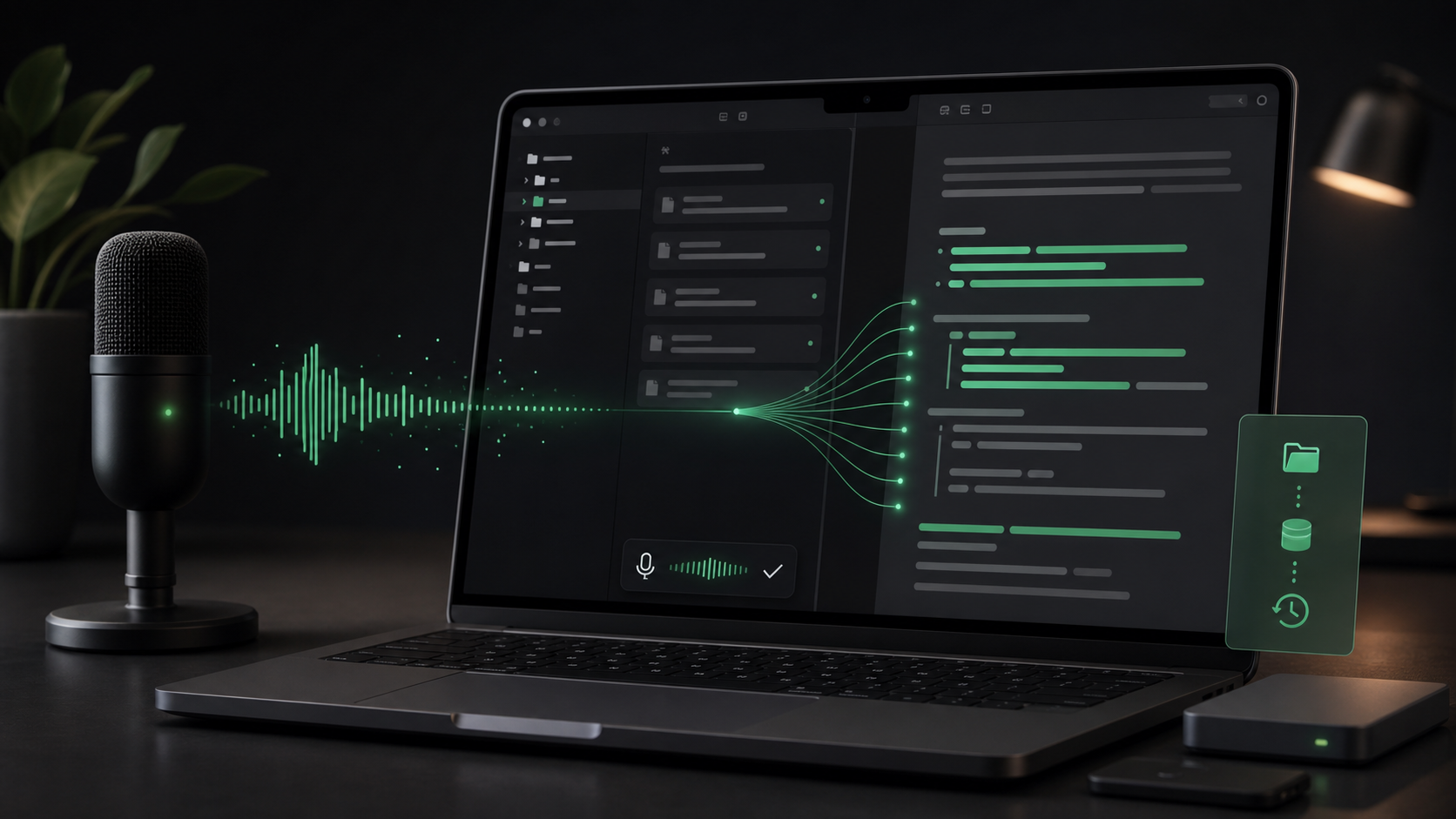
Technical documentation is usually hardest at the moment when it would be most useful.
You just finished a feature, debugged an awkward setup issue, changed a deployment step, or explained a product decision in a call. The details are fresh, but writing the clean version feels like another task. So the context stays in your head, a Slack thread, a pull request comment, or a scratch note that nobody will find next week.
Voice helps when the problem is not "I do not know what to say." It is "I know too much, and I do not want to turn it into a polished document from a blank page."
Here is a practical way to dictate technical documentation on Mac without turning the rough capture into a messy public artifact.
Capture the messy version first
Good documentation often starts as a rough explanation.
That rough version has details you might remove later:
- Why the implementation took this shape.
- Which tradeoffs were considered.
- What failed during setup.
- Which edge cases deserve attention.
- What someone should check before changing it again.
- Where the code, setting, file, or workflow actually lives.
Those details are easier to say than type because you can talk through the chain of reasoning without stopping to format every sentence.
Use dictation for that first pass. Do not try to sound like finished docs. Say the working version out loud, then edit it into the form your team or future self needs.
The most useful first sentence is usually simple:
I am documenting how this works for someone who needs to maintain it later.
That frame keeps the dictation practical. You are not writing marketing copy. You are making the next change less mysterious.
Pick the documentation shape before you speak
Voice capture gets better when you choose the shape first.
Before pressing the hotkey, decide whether you are dictating:
- A setup guide.
- A troubleshooting note.
- A runbook.
- A product decision record.
- A README section.
- A support handoff.
- A release note draft.
- A short "how this works" explanation for a teammate.
Each shape wants different information. A setup guide needs ordered steps and prerequisites. A runbook needs symptoms, checks, and recovery actions. A decision record needs context, alternatives, and the reason for the chosen path.
If you skip that choice, the transcript tends to become a memory dump. That can still be useful, but it takes longer to clean.
Try starting with a spoken outline:
This is a troubleshooting note. The problem is that transcription finishes but no text appears. First, check whether auto-insert is enabled. Second, confirm Accessibility permission. Third, try clipboard mode to separate transcription from insertion.
The transcript will not be perfect, but it already has a structure.
Dictate in small sections
Long technical dictation usually fails for boring reasons. The content is correct, but the transcript becomes too dense to edit.
Keep each recording to one section:
- What the feature or workflow does.
- When someone should use it.
- The exact steps.
- Common mistakes.
- What to check if it fails.
- Where related files, settings, or docs live.
This works well with a push-to-talk habit. Hold the global hotkey, speak one section, release, review, then continue.
Short sections have two advantages. They are easier to fix, and they make it obvious when you forgot something. If the "what can go wrong" section is empty, you can dictate it separately instead of trying to wedge it into a paragraph later.
Use the keyboard for exact identifiers
Dictation is good at capturing reasoning. It is weaker for exact strings that must survive unchanged.
Use the keyboard for:
- File paths.
- Function names.
- Environment variables.
- CLI flags.
- Error codes.
- URLs.
- Product names with unusual spelling.
- Acronyms that matter.
That does not mean you should avoid voice for technical docs. It means you should split the job intelligently.
Speak the explanation:
The build fails when the local model is not downloaded yet, so the user sees a prompt before the first transcription can run.
Then type the exact setting, command, path, or error text.
This keeps the workflow fast without trusting speech-to-text with details that are expensive to misread.
Turn explanation into steps
Spoken documentation often arrives as a story:
First I open settings, then I check the model, then if the model is missing I download it, and if the transcript is still empty I turn off Metal and try again.
That is useful raw material. The edit is to turn the story into steps:
- Open Settings.
- Check the selected local model.
- Download the model if SpeakLane prompts you.
- If transcription still returns empty text, disable Metal and retry.
You do not need dictation to produce the final shape automatically. You need it to make the raw material cheap enough that you actually capture it.
For docs, the editing pass usually means:
- Split long spoken sentences.
- Move caveats under the relevant step.
- Put warnings before the risky action.
- Replace "this thing" with the actual noun.
- Delete the implementation trivia that does not help the reader.
The final document should feel intentional. The voice transcript is scaffolding.
Keep rough internal context local
Technical docs can include sensitive material before they are cleaned up: customer names, private roadmap details, internal URLs, credentials you should not have said out loud, proprietary code context, or the reason a workaround exists.
That is why local capture matters.
If you are dictating the messy version, a local transcription workflow lets you turn audio into text on your Mac before deciding what belongs in the final doc. SpeakLane is useful here because the rough recording, transcript, and history stay local to your machine by default. You can review the text, remove private details, and only then paste it into a shared README, issue, support article, or AI prompt.
Local transcription does not make the final destination private. If you paste the cleaned doc into a cloud editor or repository, that system has its own permissions and retention rules. The point is narrower and practical: do not add an unnecessary cloud transcription step for the raw version.
Use history as a recovery layer
Documentation work is easy to interrupt.
Someone asks a question. A build fails. You switch branches. The app where you were writing loses focus. The transcript lands in the wrong place.
This is where local history matters. If the dictated section was saved, you can recover the transcript instead of trying to remember the exact explanation later.
Use history for recovery, not as the final library. Once a doc section is cleaned and moved into its permanent home, the source recording may not need to live forever. Keep retention settings aligned with the sensitivity of your work and the value of the source audio.
For routine documentation, a good pattern is:
- Dictate the rough section.
- Move the cleaned text into the real doc.
- Keep history long enough to recover mistakes.
- Clear old recordings when they no longer have value.
That gives you a safety net without quietly creating an unmanaged archive of internal explanations.
A docs dictation workflow to practice
Use this routine the next time you need to document a feature, bug fix, or process:
- Choose the document shape: guide, runbook, decision note, handoff, or README section.
- Dictate a one-sentence purpose for the reader.
- Dictate the main steps in small sections.
- Type exact names, commands, paths, and error messages.
- Add a separate "what can go wrong" section.
- Remove private context before sharing.
- Move the cleaned version into the permanent doc.
The habit is not to replace writing with talking. It is to separate capture from editing.
Voice gets the implementation context out of your head while it is still fresh. Editing turns that context into something another person can trust. For technical documentation, that split is often the difference between "we should write this down someday" and a useful note that exists before the memory fades.